Easily Add Multiple Host Network Interfaces to WSL2
Nowadays, regardless of our purpose—whether it’s development or security testing environments—efficiency, speed, and practicality are critical. In the past, when the industry moved slower, the boot time of a virtual machine or the time it took for a tool to produce output wasn’t as important. But today, even when hunting for a bug, being the first to find it is crucial. This increases the need for fast and practical solutions. Both human and hardware resources are distributed more sparingly. At this point, WSL2, which addresses this need quite well and is still under active development, offers many advantages, though it may not fully adapt to all environments. However, being able to resolve these issues saves us from the need for an extra VM.
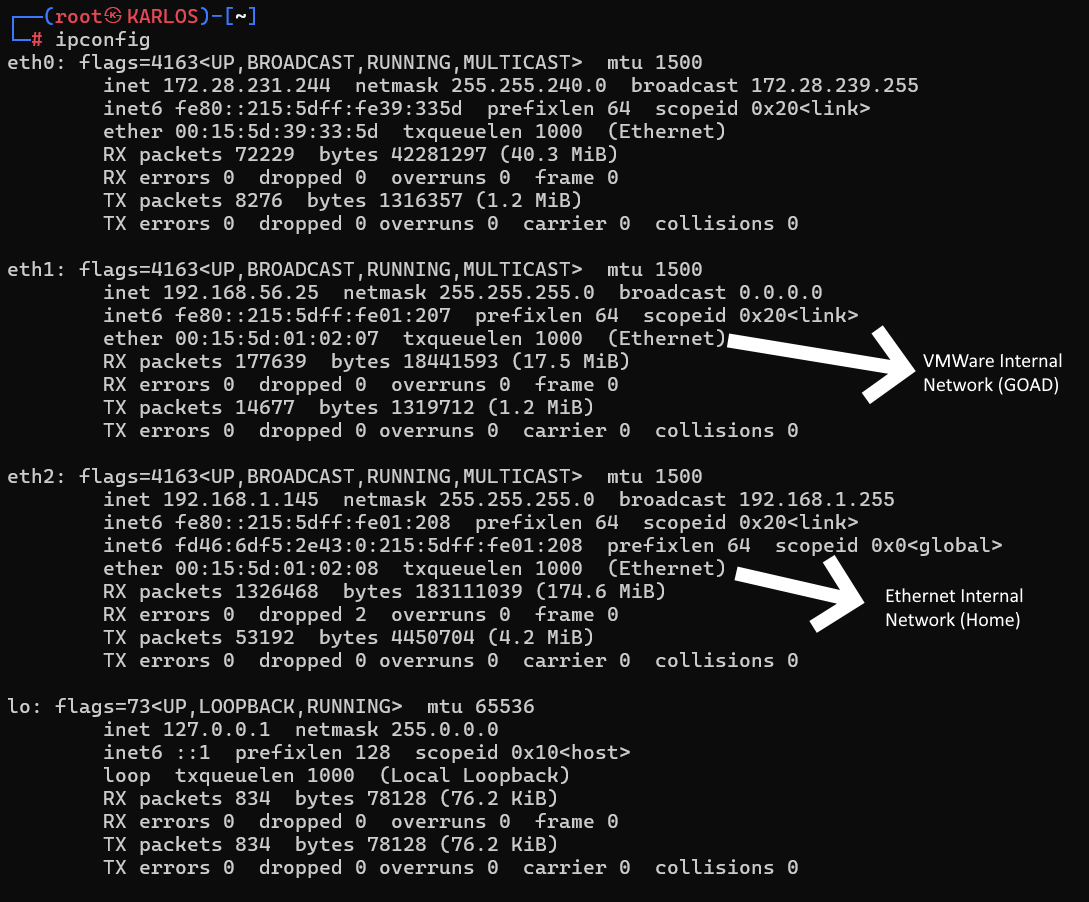
By default, WSL2 offers several networking modes; unfortunately, none of them support joining multiple networks or being recognized as a separate interface for port listening. As shown in Figure 1, I’ll walk you through how to introduce our internal networks to WSL using an open-source tool developed by dantmnf.
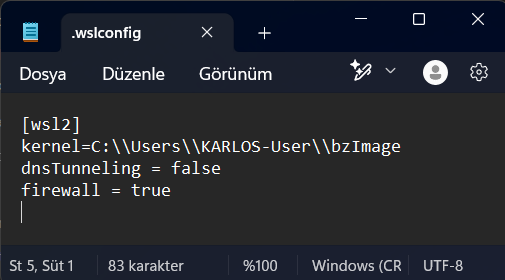
First, we need to ensure our networking settings are correctly configured in the .wslconfig file. If you’ve previously made changes, the file can be found at %USERPROFILE%/.wslconfig. If the file doesn’t exist, it means no prior custom configuration was made. Open the file and add the following lines. This step is crucial to prevent WSL2 from occupying the DNS port.
dnsTunneling = false
firewall = true
After saving the file, run wsl --shutdown via PowerShell, then restart WSL. In my configuration, the first line is a kernel setting—you can ignore that.
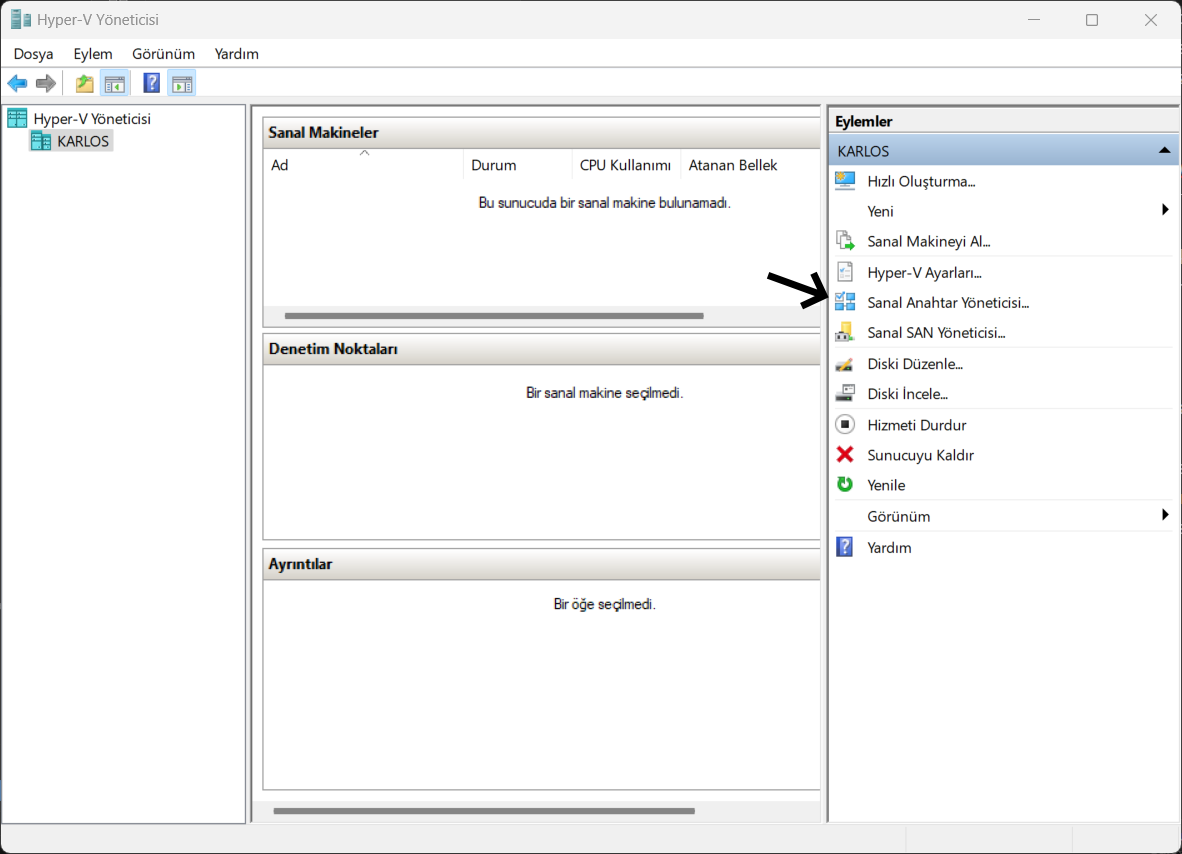
Next, open the Hyper-V Manager from the start menu. From the interface, click on Virtual Switch Manager.
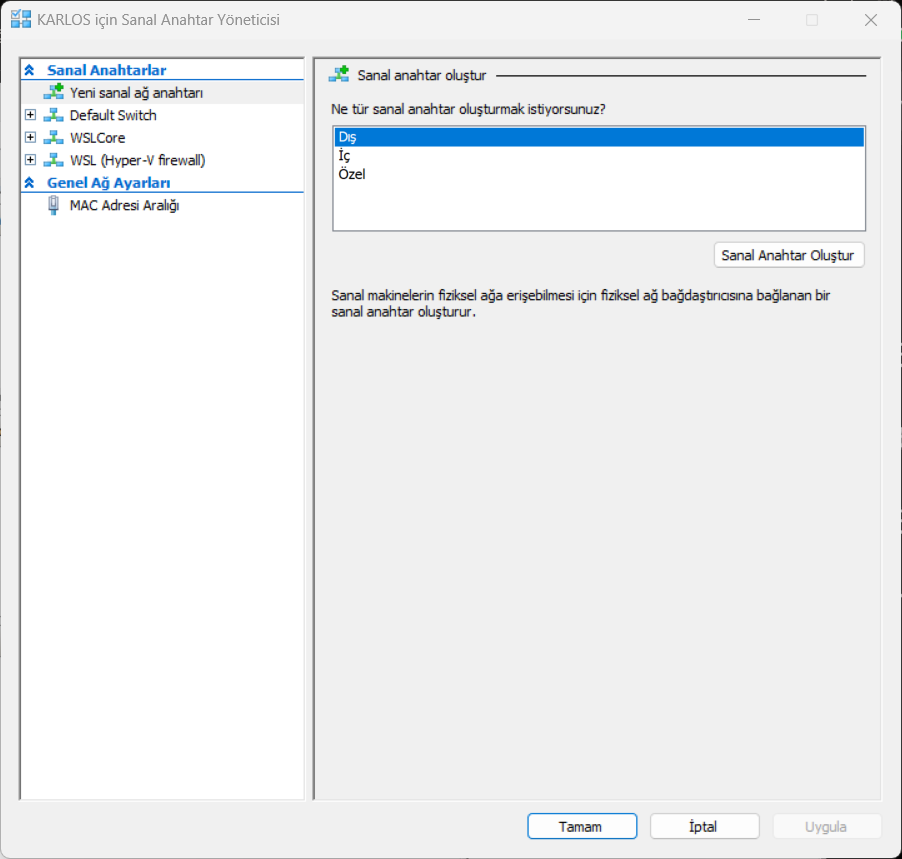
The networks seen here are Hyper-V’s internal networks. We’ll create a new network using the External option.
Name the network and choose which adapter to bind under the External network: section. You might see a warning that Hyper-V connected servers may be affected by changes—feel free to ignore it depending on your environment.
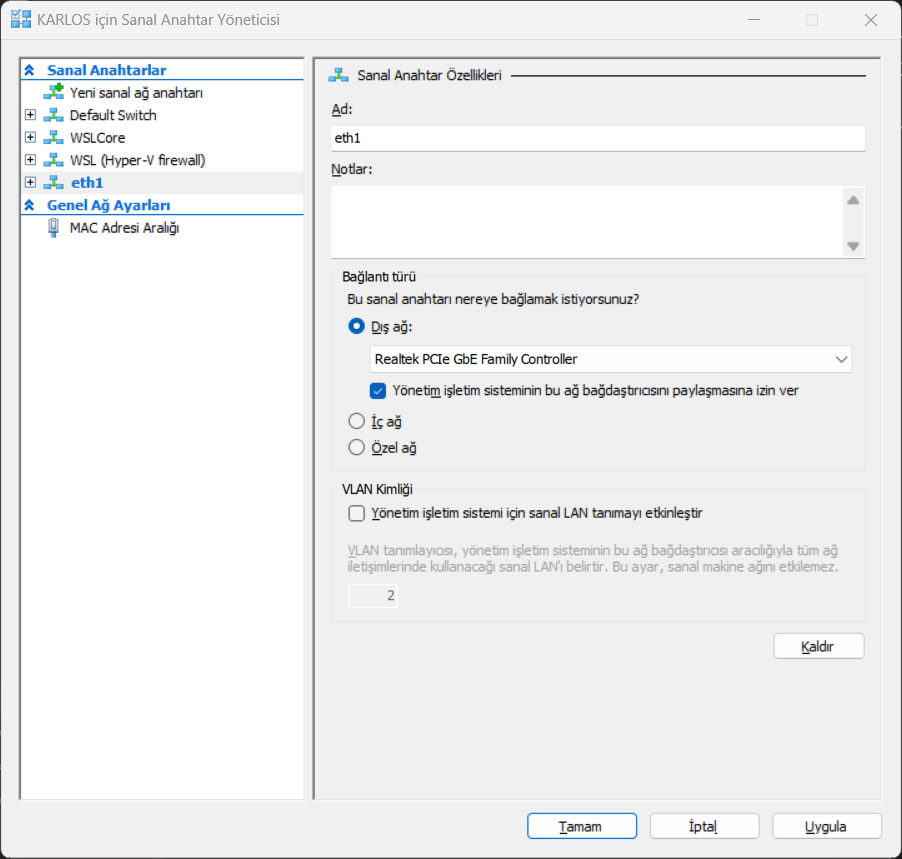
Create another network for the second adapter and bind it to the desired adapter as well. Since I want to communicate and listen on the VMWare network, I’ll select the adapter connected to VMWare.
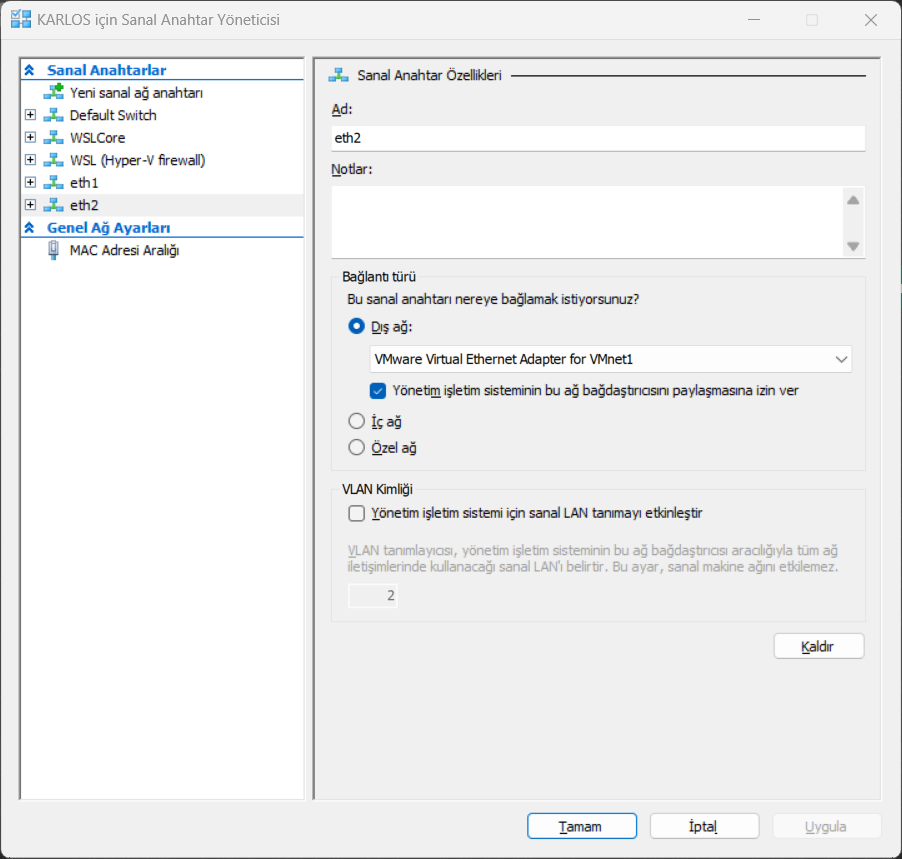
You can create as many networks as needed. Then download the WSLAttachSwitch.exe tool from the WSLAttachSwitch repository under Releases. If you have security concerns, you can compile it yourself. It’s fully open source.
Run the following commands based on the network names:
WSLAttachSwitch.exe eth1
WSLAttachSwitch.exe eth2
Note: You can use the --mac and --vlan parameters to define specific attributes.

When we return to WSL and run ip addr, we should see two interfaces connected as hardware devices.
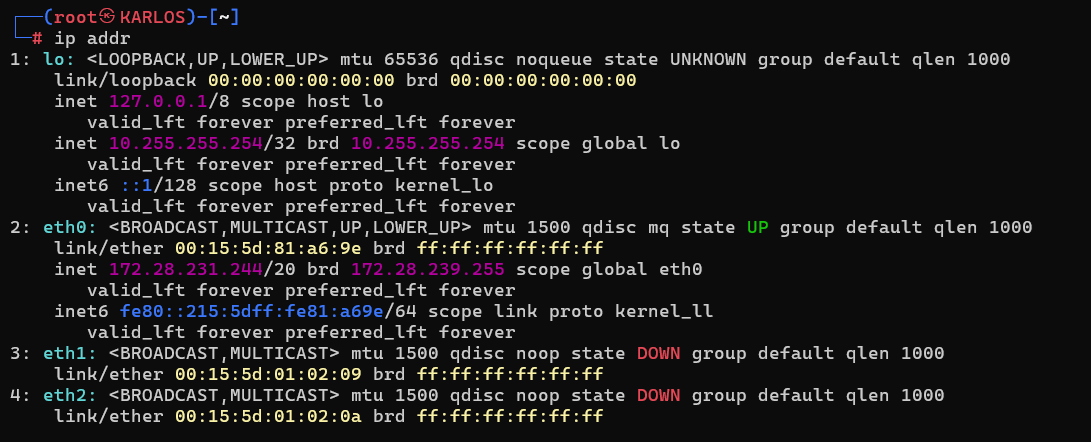
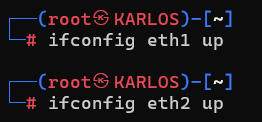
Run ifconfig interfacename up for each interface.
For networks with DHCP enabled, run dhclient interfacename.
Even if it seems like an error, the command will work.
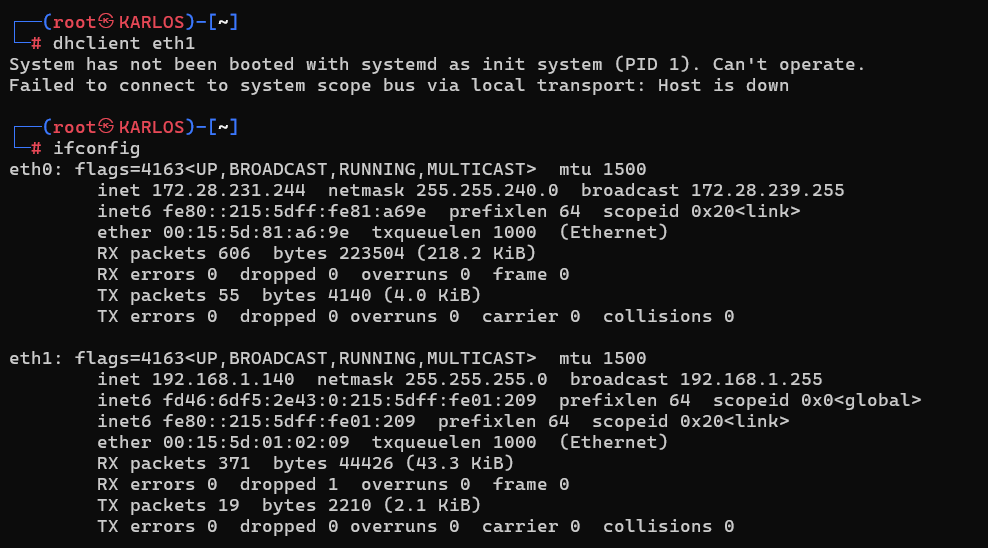
For networks without DHCP, manually assign an IP.
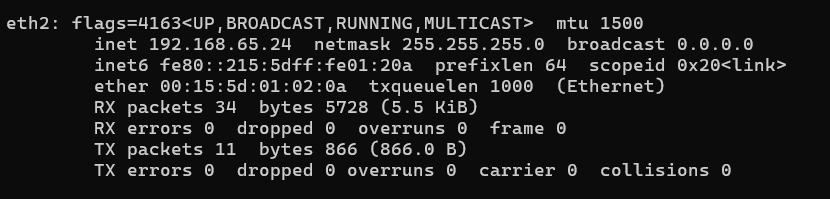
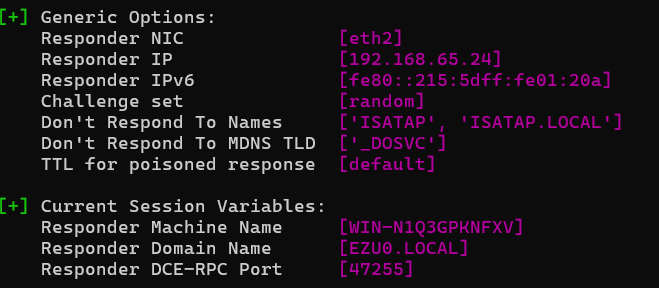
At this stage, our connections are complete and ready for testing. Normally, tools like Responder cannot run on WSL due to network limitations, but with this setup, it’s now possible to use such tools without issues.
We start Responder on eth2.
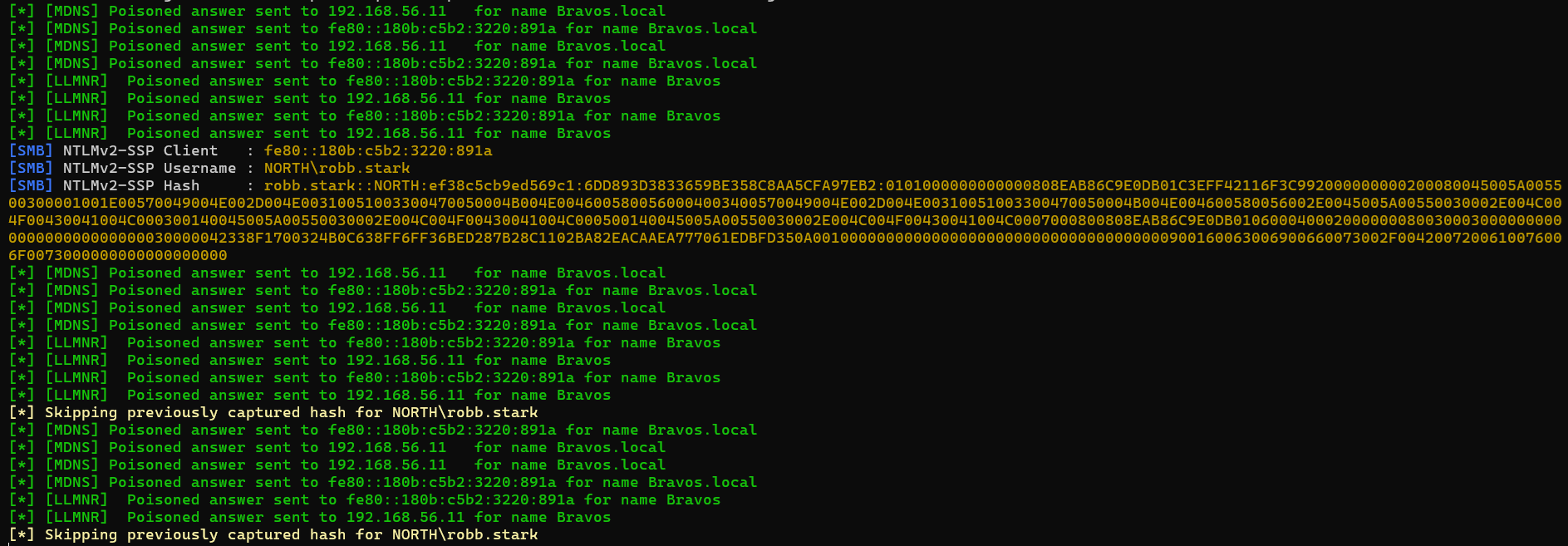
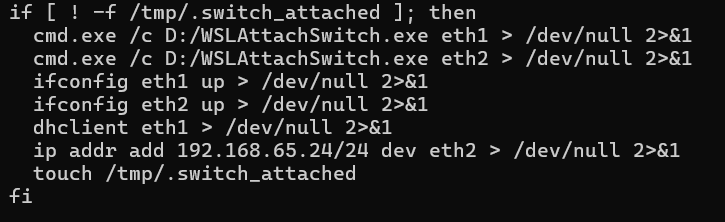
Note: When WSL is restarted, these networks will disappear from WSL. You can reattach them using the WSLAttachSwitch.exe tool again. If you want, you can automate this via scripting. I handled it with a check inside .bashrc as shown below.
I hope this article has been helpful. Feel free to reach out on LinkedIn or via Email with your feedback or questions.
Thanks to Melanie for the support <3